 Animation Studio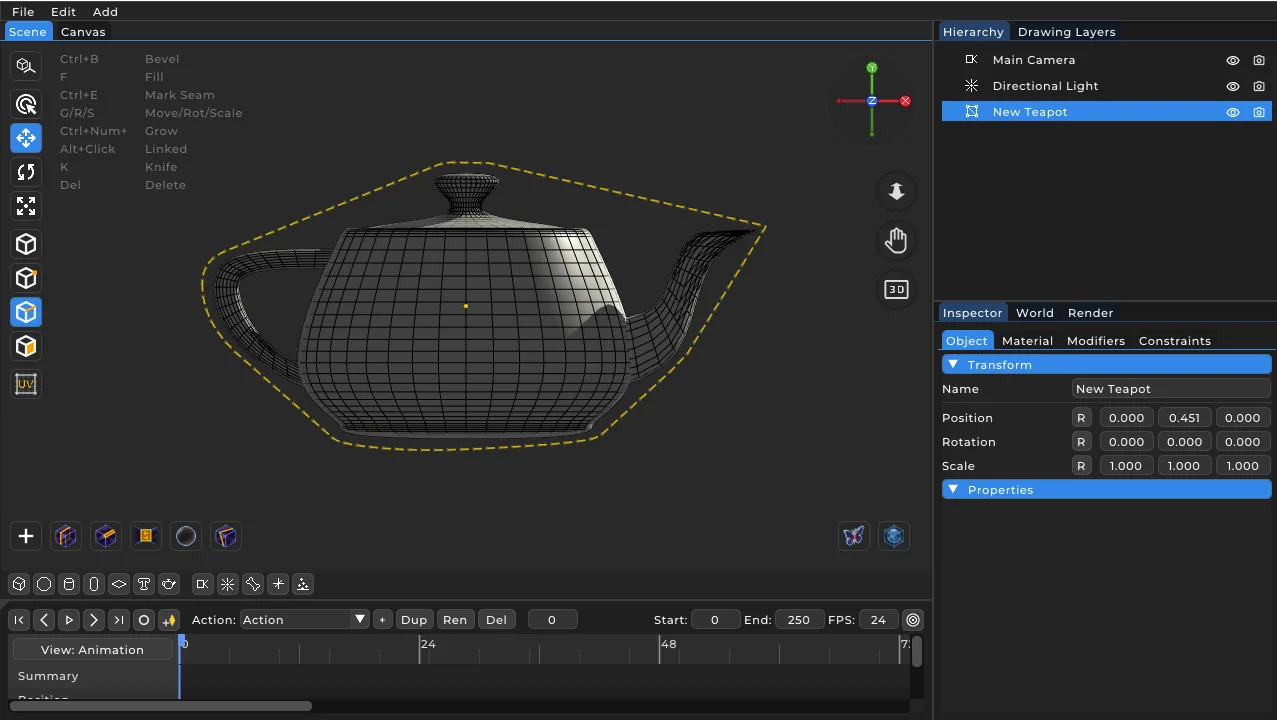
Blender-style transform hotkeys (G / R / S)
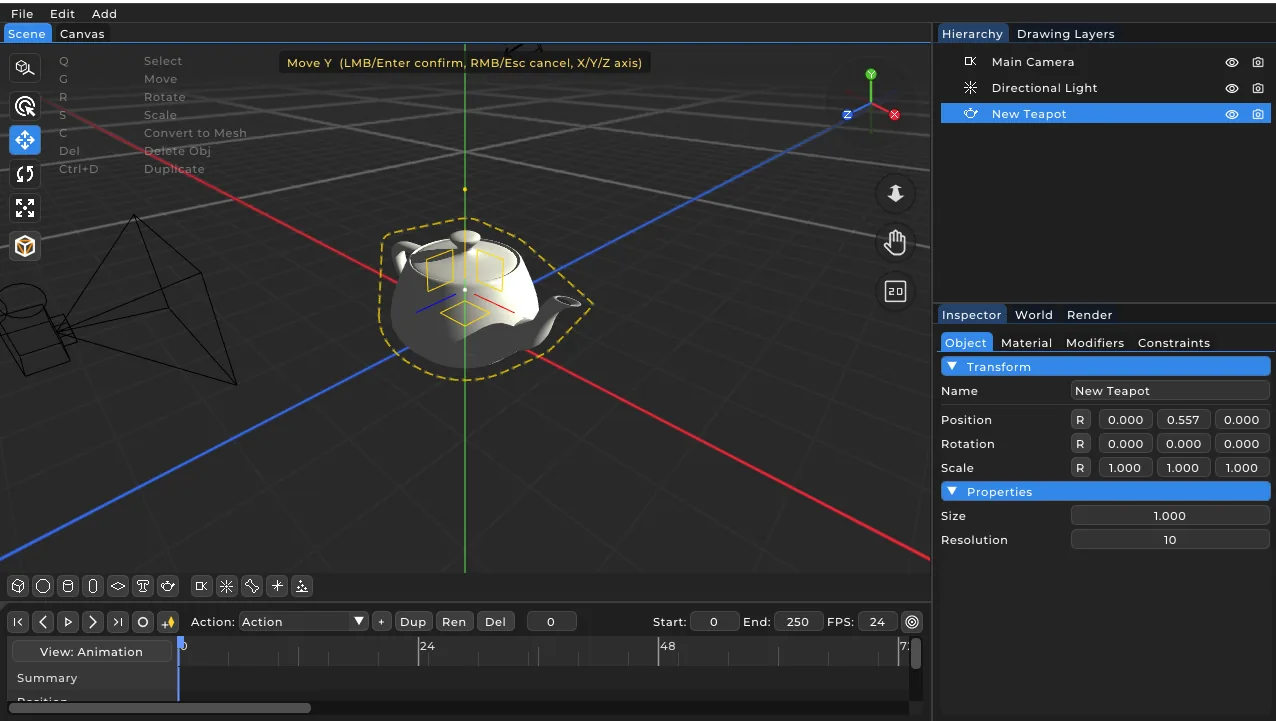
This is the bigger one: we added modal transforms, just like you're used to in Blender. No more dragging gizmo arrows — one key press and a mouse move, and you're transforming instantly.
The basics:
- G – grab (move)
- R – rotate
- S – scale
Press the key, move the mouse, and the selection follows. Left click or Enter confirms, right click or Esc cancels (everything snaps back to its original state).
Axis constraints: while transforming, press X, Y or Z to lock the operation to a single axis. Press the same key again to release it. The constrained axis is shown with a colored guide line (X = red, Y = green, Z = blue).
Exact numeric input: just type a value mid-transform. For example G Z 2 moves exactly 2 units along Z; R X 45 rotates 45 degrees around X. - and . are supported, and Backspace edits your input.
Visual feedback: a header at the top-center of the viewport shows the current mode and value (e.g. Rotate Z: 45), so you always know where you stand.
All of this works in both Object and Edit mode (on objects, or on selected vertices/edges/faces) and is fully integrated with the undo/redo system.
⚠️ Change: theRkey previously switched to the scale gizmo — it now triggers rotation, matching Blender. TheQ(select),W(move) andE(rotate) gizmo shortcuts are still available.
Yellow pivot dot while modeling
A small yellow dot now marks the pivot point of the selected model — the reference point that rotation and scaling happen around.
- In Object mode the dot sits on the object's origin (or the shared center when multiple objects are selected), and it's visible in every tool mode — even "Select" mode, where no gizmo is otherwise drawn.
- In Edit mode (vertex/edge/face editing) the dot stays on the model's origin, so you always have a reference point while working on the geometry.
The marker is drawn in world space, exactly on the pivot, and uses the same yellow tone as the selection outline for a consistent look.