 Level Modeller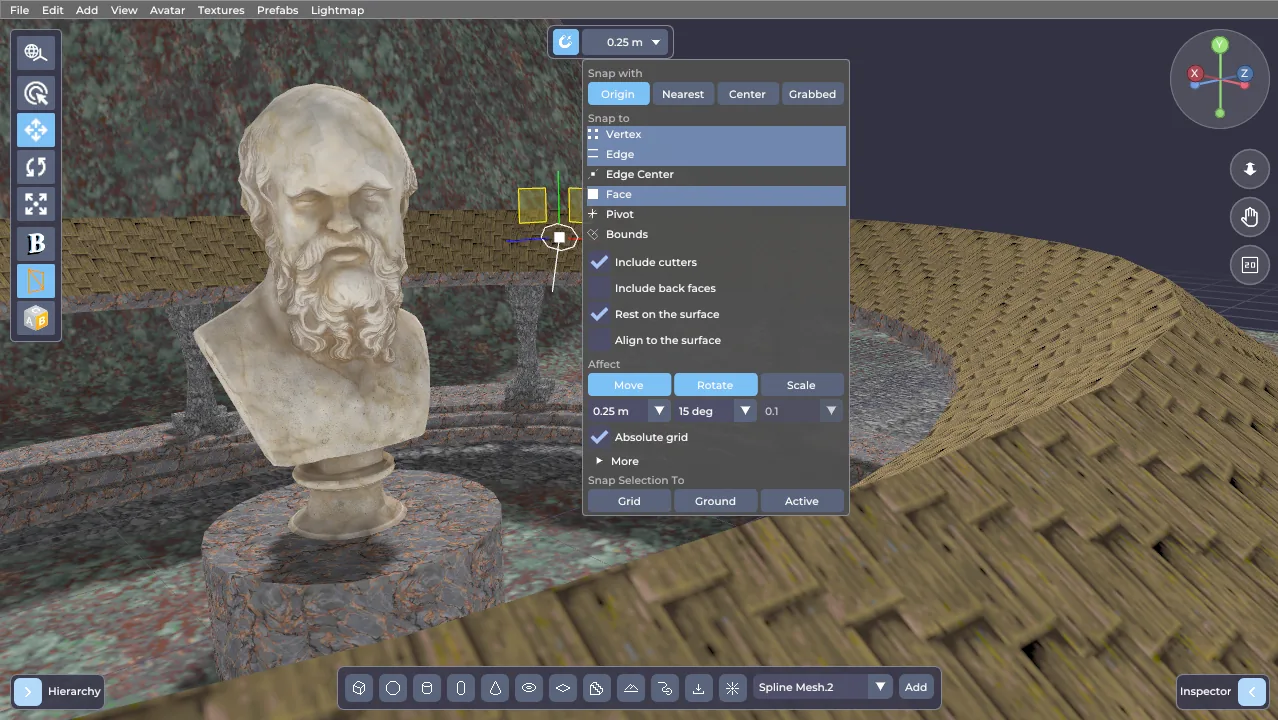
Snapping: things that actually line up
Up to now, putting a wall next to another wall in PapaiArt Tools – Level Modeller meant eyeballing it, squinting at the seam, and then typing coordinates into the Inspector until the gap went away. Your box landed at x = 2.4374 and the two rooms almost met.
That's over. This update adds a full snapping system.
The grid you see is the grid you get
The viewport grid used to be decoration — a fixed 1-metre pattern that had nothing to do with where anything landed. Now it is the snap grid. Change the step to 0.5 m and the grid redraws at 0.5 m. Zoom out and the fine lines retire on their own instead of smearing into grey mush; zoom back in and they return.
And if you switch snapping off, the snap grid goes with it. What's left is a plain ground reference, so the viewport still has a floor to stand on — but it stops promising you something it isn't doing.
It snaps to what's actually there
Corners, edges, edge centres, surfaces, object pivots, bounding boxes — turn on as many as you like.
One detail worth calling out: it snaps to the edges you can see. A cube has twelve edges. Under the hood every flat face is split into triangles, which means there are invisible lines running diagonally across each wall — and a naive snap system happily grabs those, which is exactly why snapping in some tools feels like it has a mind of its own. Those diagonals are not targets here. Curved surfaces are treated the same way: a cylinder offers its two rims, not its twenty-four seams, and a sphere offers no edges at all, because it hasn't got any.
Corners also outrank everything else. Near a corner you get the corner, not the edge that happens to pass a pixel closer.
Which part of your object lands there
This is the half most snapping leaves out. It's not just what do I snap to — it's which part of the thing I'm dragging goes there.
- Origin — the object's own centre point.
- Nearest — whichever corner of the object faces the target. This is the one you want: grab a crate anywhere, shove it toward a room corner, and it goes in flush.
- Center — the middle of its bounds.
- Grabbed — the corner you were pointing at when you started dragging.
Drop it on the floor
Select something, press End, and it lands on the level — on the actual surface the player walks on, not on an imaginary plane. It probes across the object's footprint and takes the highest support, so a crate hanging half over a step rests on the step instead of sinking through it.
There's also Snap Selection To → Grid / Ground / Active in the popover and in the Edit menu.
Turning in steps
Rotation snaps too — 15° by default, with 5 / 10 / 22.5 / 30 / 45 / 90 a click away. Doors and corridors stop being 87.3°.
One magnet, one panel
All of this lives behind two small buttons at the top of the viewport: a magnet that says whether snapping is on, and the current grid step. Click the step and the whole panel opens — targets, options, the operators. Click anywhere else and it's gone.
While you're dragging, a marker appears on whatever you're locking onto and a small label names it: Vertex, Edge Center, Surface, Grid 0.25 m. No more guessing why something jumped.
Small things that add up
- The Inspector's number fields snap to the same grid. A 2.4374 m thick wall is just as wrong as a position of 2.4374, and wall thickness is something you type.
- Cutter objects count as snap targets, because lining a door cutter up with a wall is half of level building.
- Drop a prop on a ramp with Align to the surface on and it lies on the ramp.
- Your snap settings are saved with the map — reopen a level and it's still on the grid it was built on.
Shortcuts
Shift+Tab -> snapping on/off
Ctrl (held) -> invert it for a moment
Shift (held) -> half-step, for fine work
- / + -> halve / double the grid step
End -> drop the selection onto the level