 Level Modeller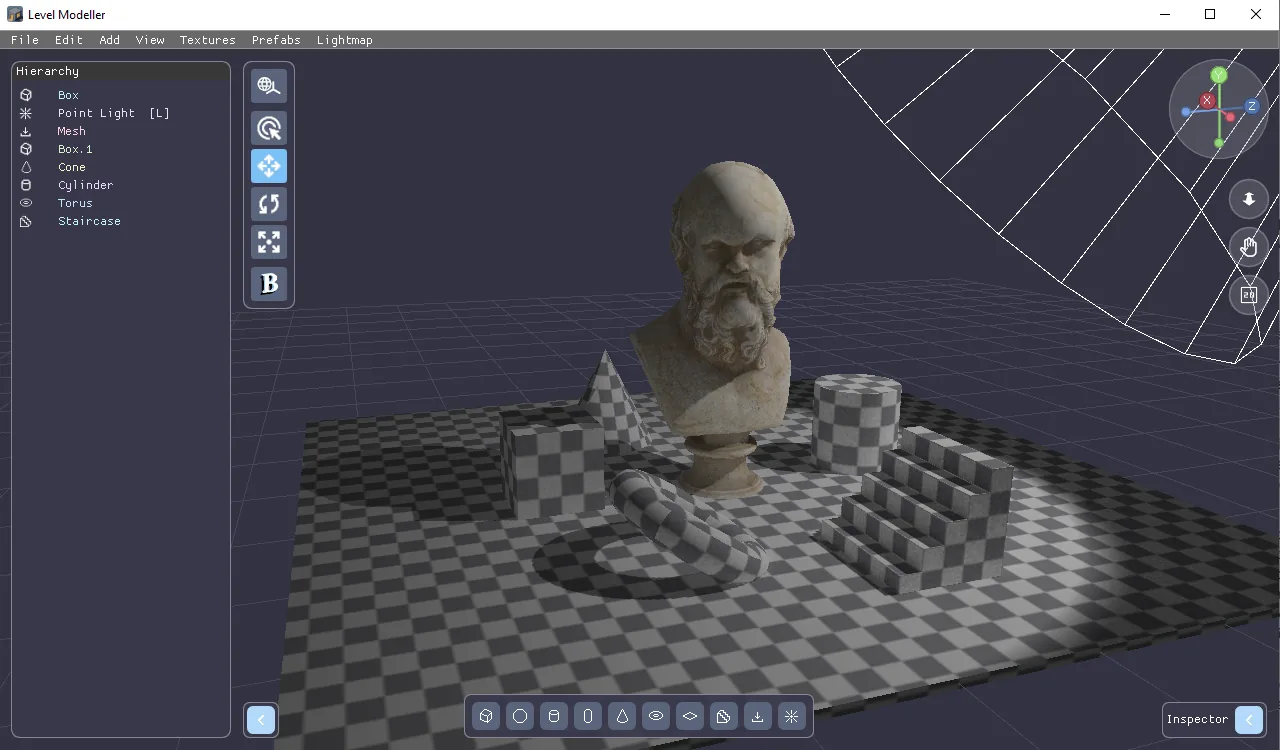
Multi-Select, Group Editing & OBJ Import
Hey everyone! This update is all about working with more than one thing at a time — plus a long-requested feature: bringing your own meshes into the editor.
Box Select & Multi-Selection
You can finally select multiple objects at once:
- Drag on empty space - to draw a selection rectangle — everything it touches gets selected.
- Shift+drag - adds the result to your current selection instead of replacing it.
- Shift+click - (in the viewport or in the Hierarchy panel) toggles a single object in and out of the selection.
- Clicking empty space still clears the selection, and every selected object gets its own outline highlight.
Group Move & Duplicate
A multi-selection isn't just for show:
- Move / Rotate / Scale - now applies to the whole selection. The group moves rigidly together; rotating or scaling pivots around the active object, so arranging clusters of geometry feels natural.
- Ctrl+D duplicates the entire selection** and selects the copies — grab-and-drag a whole room in two keystrokes.
- Delete removes everything selected.
- Parent/child safety is built in: if a parent and its child are both selected, the operation runs once, on the parent — no double moves, no double copies.
New: Mesh Primitive (OBJ Import)
There's a new primitive in the add bar: Mesh. Drop one in, open the Inspector, and hit Import OBJ... to load any Wavefront .obj file. Until you pick a file it shows as a placeholder box, so it's always visible and selectable.
Imported meshes are first-class citizens: they work with boolean carving (positive/negative), precise triangle picking, lightmap baking, and OBJ/GLB export — exactly like the built-in primitives.
Your UVs or Ours
Each Mesh object has a "Use OBJ's own UVs" toggle in the Inspector:
- On — the texture coordinates authored in your 3D tool are used as-is.
- Off — the mesh gets the same automatic box-projection texturing as every other primitive (with texture scale, offset and rotation controls).